Kamis, 12 Juni 2008

Mengamankan Mikrotik Router dengan Firewall

Untuk mengamankan router mikrotik dari serangan orang orang yang tidak bertanggung jawab, traffic virus dan excess ping, berikut ini langkah-langkah yang harus dilakukan :

Pertama kita buat address-list “trusted-network” yang berisi alamat IP yang berhak mengakses router dan masuk dalam kategori �Trusted Network�.

Dalam contoh berikut ini, saya menggunakan IP lokal network / LAN 192.168.1.0/24. Dan IP public 202.152.x.x dari akses internet rumah saya. Anda bisa menambahkan list IP tersebut agar dapat mengakses routernya.

/ip firewall address-list add list=trusted-network address=192.168.1.0/24 comment=”Trusted Network” disabled=no

/ip firewall address-list add list=trusted-network address=202.152.x.x/24 comment=”Trusted Network” disabled=no

Selanjutnya buat chain virus agar port-port yang sering dimanfaatkan virus di blok sehingga traffic virus tidak dapat dilewatkan, tetapi perlu diperhatikan jika ada user yang kesulitan mengakses service tertentu apakah port yang dibutuhkan user tersebut terblok oleh firewall.

/ip firewall filter add chain=forward connection-state=established action=accept comment=”Allow Established Connections” disabled=no

/ip firewall filter add chain=forward connection-state=related action=accept comment=”Allow Related Connections” disabled=no

/ip firewall filter add chain=virus protocol=udp dst-port=135-139 action=drop comment=”Drop Messenger Worm” disabled=no

/ip firewall filter add chain=forward connection-state=invalid action=drop comment=”Drop Invalid Connections” disabled=no

/ip firewall filter add chain=virus protocol=tcp dst-port=135-139 action=drop comment=”Drop Blaster Worm” disabled=no

/ip firewall filter add chain=virus protocol=tcp dst-port=1433-1434 action=drop comment=”Worm” disabled=no

/ip firewall filter add chain=virus protocol=tcp dst-port=445 action=drop comment=”Drop Blaster Worm” disabled=no

/ip firewall filter add chain=virus protocol=udp dst-port=445 action=drop comment=”Drop Blaster Worm” disabled=no

/ip firewall filter add chain=virus protocol=tcp dst-port=593 action=drop comment=”________” disabled=no

/ip firewall filter add chain=virus protocol=tcp dst-port=1024-1030 action=drop comment=”________” disabled=no

/ip firewall filter add chain=virus protocol=tcp dst-port=1080 action=drop comment=”Drop MyDoom” disabled=no

/ip firewall filter add chain=virus protocol=tcp dst-port=1214 action=drop comment=”________” disabled=no

/ip firewall filter add chain=virus protocol=tcp dst-port=1363 action=drop comment=”NDM Requester” disabled=no

/ip firewall filter add chain=virus protocol=tcp dst-port=1364 action=drop comment=”NDM Server” disabled=no

/ip firewall filter add chain=virus protocol=tcp dst-port=1368 action=drop comment=”Screen Cast” disabled=no

/ip firewall filter add chain=virus protocol=tcp dst-port=1373 action=drop comment=”Hromgrafx” disabled=no

/ip firewall filter add chain=virus protocol=tcp dst-port=1377 action=drop comment=”Cichlid” disabled=no

/ip firewall filter add chain=virus protocol=tcp dst-port=2745 action=drop comment=”Bagle Virus” disabled=no

/ip firewall filter add chain=virus protocol=tcp dst-port=2283 action=drop comment=”Drop Dumaru.Y” disabled=no

/ip firewall filter add chain=virus protocol=tcp dst-port=2535 action=drop comment=”Drop Beagle” disabled=no

/ip firewall filter add chain=virus protocol=tcp dst-port=2745 action=drop comment=”Drop Beagle.C-K” disabled=no

/ip firewall filter add chain=virus protocol=tcp dst-port=3127 action=drop comment=”Drop MyDoom” disabled=no

/ip firewall filter add chain=virus protocol=tcp dst-port=3410 action=drop comment=”Drop Backdoor OptixPro” disabled=no

/ip firewall filter add chain=virus protocol=tcp dst-port=4444 action=drop comment=”Worm” disabled=no

/ip firewall filter add chain=virus protocol=udp dst-port=4444 action=drop comment=”Worm” disabled=no

/ip firewall filter add chain=virus protocol=tcp dst-port=5554 action=drop comment=”Drop Sasser” disabled=no

/ip firewall filter add chain=virus protocol=tcp dst-port=8866 action=drop comment=”Drop Beagle.B” disabled=no

/ip firewall filter add chain=virus protocol=tcp dst-port=9898 action=drop comment=”Drop Dabber.A-B” disabled=no

/ip firewall filter add chain=virus protocol=tcp dst-port=10000 action=drop comment=”Drop Dumaru.Y, sebaiknya disable karena juga sering digunakan utk vpn / webmin” disabled=yes

/ip firewall filter add chain=virus protocol=tcp dst-port=10080 action=drop comment=”Drop MyDoom.B” disabled=no

/ip firewall filter add chain=virus protocol=tcp dst-port=12345 action=drop comment=”Drop NetBus” disabled=no

/ip firewall filter add chain=virus protocol=tcp dst-port=17300 action=drop comment=”Drop Kuang2″ disabled=no

/ip firewall filter add chain=virus protocol=tcp dst-port=27374 action=drop comment=”Drop SubSeven” disabled=no

/ip firewall filter add chain=virus protocol=tcp dst-port=65506 action=drop comment=”Drop PhatBot, Agobot, Gaobot” disabled=no

Jump semua paket yang melewati router ke dalam virus chain

/ip firewall filter add chain=forward action=jump jump-target=virus comment=”Jump to The Virus Chain” disabled=no

Accept Established and Related Connection

/ip firewall filter add chain=input connection-state=established action=accept comment=”Accept Established Connections” disabled=no

/ip firewall filter add chain=input connection-state=related action=accept comment=”Accept Related Connections” disabled=no

Drop Invalid Connection

/ip firewall filter add chain=input connection-state=invalid action=drop comment=”Drop Invalid Connections” disabled=no

Accept UDP Connection, Limited Pings and Drop Excess Ping

/ip firewall filter add chain=input protocol=udp action=accept comment=”UDP” disabled=no

/ip firewall filter add chain=input protocol=icmp limit=50/5s,2 action=accept comment=”Allow Limited Pings” disabled=no

/ip firewall filter add chain=input protocol=icmp action=drop comment=”Drop Excess Pings” disabled=no

Allow Input Connection From Trusted Networks

/ip firewall filter add chain=input protocol=tcp dst-port=21 src-address-list=trusted-network action=accept comment=”FTP” disabled=no

/ip firewall filter add chain=input protocol=tcp dst-port=22 src-address-list=trusted-network action=accept comment=”SSH for Secure Shell” disabled=no

/ip firewall filter add chain=input protocol=tcp dst-port=23 src-address-list=trusted-network action=accept comment=”Telnet” disabled=no

/ip firewall filter add chain=input protocol=tcp dst-port=80 src-address-list=trusted-network action=accept comment=”Web” disabled=no

/ip firewall filter add chain=input protocol=tcp dst-port=8291 src-address-list=trusted-network action=accept comment=”Winbox” disabled=no

/ip firewall filter add chain=input protocol=tcp dst-port=1723 action=accept comment=”pptp-server” disabled=no

/ip firewall filter add chain=input src-address-list=trusted-network action=accept comment=”From Trusted Network” disabled=no

Log All and Drop Everything Else

/ip firewall filter add chain=input action=log log-prefix=”DROP INPUT” comment=”Log Everything Else” disabled=no

/ip firewall filter add chain=input action=drop comment=”Drop Everything Else” disabled=no

Dengan Firewall diatas maka :

  1. Router hanya dapat diakses service FTP, SSH, Web dan Winbox dari IP yang telah didefinisikan dalam address-list “trusted-network”.
  2. Port-port yang sering dimanfaatkan oleh virus di blok oleh Router sehingga traffic virus tidak dapat melewati Router, tetapi perlu diperhatikan jika ada user yang mengakses service tertentu harus dicek pada chain=”virus” apakah port yang dibutuhkan user tersebut terblok oleh firewall atau tidak.
  3. Ping Request dibatasi untuk menghindari excess ping.
NB : Perlu diperhatikan bahwa default user dari mikrotik ini adalah admin. Untuk lebih safe nya, buat user baru dan password dengan group full kemudian disable user admin, hal ini untuk meminimasi resiko router mikrotik di hack orang.

Jumat, 09 Mei 2008

User Manager Untuk Hotspot Mikrotik

User Manager Untuk Hotspot Mikrotik
Written by Fajar
Monday, 31 December 2007
User Manager Mikrotik merupakan management system yang apat dipergunakan untuk memanage user sbb:
  1. HotSpot users
  2. PPP (PPtP/PPPoE) users
  3. DHCP users
  4. Wireless users
  5. RouterOS users.
  • Pada tulisan ini akan sedikit diulas mengenai User Manager untuk hotspot user. Sebelumnya paket hotspot dan dhcp server harus sudah terintall/enable dan dikonfigurasi terlebih dahulu pada Mikrotik RouterOS. Asumsi pada tulisan ini RouterOS terdiri atas 1 Wlan dan 1 ether. Ether sebagai interface yang terhubung ke internet sedangkan wlan sebagai interface yang terhubung ke hotspot client.Ip ether 1 192.168.0.40 dan wlan 1 dengan ip 172.16.0.1/24. Langkah-langkahnya sebagai berikut:
  • 1. Set DHCP Server pada interface wlan1 ( Set Dhcp server ada pada tulisan terdahulu).
  • 2. Set Hostpot
  • / ip hotspot profile set hsprof1 use-radius=yes
  • 3. Set Radius Client untuk User Manager menangani hotspot
  • / radius add service=hotspot address=172.16.0.1 secret=123456
  • Sebagai catatan pertama kali hotspot user autentifikasi akan membaca pada database /ip hotspot user print. Remove data pada direktori ini agar autentifikasi pada radius.

4. Install User Manager

- Buka system packages dari winbox atau terminal

/system/packages/print - Jika belum ada paket user manager install dulu. Karena User-manager merupakan paket terpisah dari router os MT. Pastikan versi outer OS sama dengan versi paket user manager. Misalnya jika router os kita 2.9.50 maka paket user-manager juga harus 2.9.50. Download dari http://www.mikrotik.com/download.html, pilih salah paket user-manager-2.9.x.npk dari paket zip - Upload via Program FTP Ke Mikrotik Server - Reboot Mikrotik Server - Cek system packages spt no 1, jika user manager belum aktif diaktifkan terlebih dahulu kemudian reboot. Jika sudah aktif - buka http://192.168.0.40/userman - Jika sudah bisa terbuka halaman login user manager, berarti user manager sudah aktif.

  • 5. Buat Pada User Manager nama subcriber
  • / tool user-manager customer add login="admin" password=123 permissions=owner
  • 6. Buat Hotspot Router
  • / tool user-manager router add subscriber=admin ip-address=172.16.0.1 shared-secret=123456
  • 7. Buat User untuk Hotspot
  • / tool user-manager user add username=fajar password=123 subscriber=admin
Silahkan dicoba untuk konek hotspot dengan laptop dan User manager dapat diakses melalui http://192.168.0.40/userman. Menu-menu yang terdapat di dalamnya antara lain status login, add user, delete user, log dan lain-lain. Lengkapnya seperti ini http://wiki.mikrotik.com/wiki/User_Manager/Customer_page Referensi: http://wiki.mikrotik.com/wiki/MikroTik_User_Manager http://wiki.mikrotik.com/wiki/User_Manager/Hotspot_Example

Selasa, 06 Mei 2008

Mikrotik crack download at local server

Mikrotik iso crack juga dapat di download di server Indonesia, gigeupload.com silahkan klik disini

Download mikrotik crack bajakan

Maaf rekan2, untuk mikrotik yg download di rapidshare udah expired silahkan download yg di indowebster http://rapidshare.com/files/31374001/mikrotik-2.9.27.rar --->link ini udah expired update (2 Des 2007): http://www.indowebster.com/mikrotik2927cracked.html --->valid

Why choose Mikrotik?

Why choose Mikrotik?

  • Cost effective solution
  • High-speed wireless data links (Up to 108Mbps)
  • Connection distance up to 70 km without repeater sites.
  • IP - NAT, Routing, DHCP
  • Security - Firewall, Secure Tunnels
  • Control - Queues, Proxy, Accounting, HotSpot
  • Fast and simple installation for base station and clients
  • Reliable and instant 24 hour internet access

Basic requirements to create a wireless links are:

  • Direct Line of sight between both points of presence
  • Distance between points of presence is:
    • up to 25 km for point-to-multipoint links
    • up to 70 km for point-to-point links
  • Use of 2.4 or 5.2-5.8 GHz solutions according to the local regulations. In some countries obtaining a special license might be required.
wireless systems come with Mikrotik RouterOS software preinstalled. RouterOS will enable you to use many features such as: firewall, NAT, bandwidth management, different kinds of tunnels, HotSpot and others.

Video tutorial mikrotik

You can found many tutorial mikrotik by following this link: Video tutorial mikrotik

Tutorial Mikrotik VPN : EoIP

Ethernet over IP (EoIP) Tunneling is a MikroTik RouterOS protocol that creates an Ethernet tunnel between two routers on top of an IP connection. The EoIP interface appears as an Ethernet interface. When the bridging function of the router is enabled, all Ethernet level traffic (all Ethernet protocols) will be bridged just as if there where a physical Ethernet interface and cable between the two routers (with bridging enabled). This protocol makes multiple network schemes possible.

Network setups with EoIP interfaces:

  • Possibility to bridge LANs over the Internet
  • Possibility to bridge LANs over encrypted tunnels
  • Possibility to bridge LANs over 802.11b 'ad-hoc' wireless networks
An EoIP interface should be configured on two routers that have the possibility for an IP level connection. The EoIP tunnel may run over an IPIP tunnel, a PPTP 128bit encrypted tunnel, a PPPoE connection, or any connection that transports IP.

Specific Properties:

  • Each EoIP tunnel interface can connect with one remote router which has a corresponding interface configured with the same 'Tunnel ID'.
  • The EoIP interface appears as an Ethernet interface under the interface list.
  • This interface supports all features of and Ethernet interface. IP addresses and other tunnels may be run over the interface.
  • The EoIP protocol encapsulates Ethernet frames in GRE (IP protocol number 47) packets (just like PPTP) and sends them to the remote side of the EoIP tunnel.
  • Maximal count of EoIP tunnels is 65536.
This is how to set up EoIP to bridge two (or more) Mikrotik routers for central PPPoE authentication Using 2 routers called R1 and R2 that have an IP connection between them and R2 has 2 ethernet ports, i.e. you can ping rB from R1 and R1 from R2 where the R1 facing eth port is called eth1 and its other port is called eth2. 1. create a new EoIP tunnel on R1. 2. create a new EoIP tunnel on R2, where the tunnel ID is the same as the one on R1 but the MAC addreses are different. 4. create a new bridge on R1 and R2 3. add a PPPoE server to the Bridge on R1. 4. on R2 and add eth2 and the EoIP tunnel to the bridge. 5. put an IP address onto eth2 (any address seems to work, but it maybe better to use a different subnet for routing purposes). Now you should be able to establish a PPPoE connection from a PC plugged into the eth2 port on router R2, this PPPoE connection will terminate on router R1. This is not the most efficient method of using the available bandwidth on a network, but is perhaps easier than having a PPPoE A/C on every Mikrotik router and using RADIUS as you can just have PPP secrets setup on one router. taken from http://wiki.mikrotik.com/wiki/EoIP

Tutorial Mikrotik VPN : Point to Point Tunnel Protocol (PPTP)

Summary PPTP (Point to Point Tunnel Protocol) supports encrypted tunnels over IP. The MikroTik RouterOS implementation includes support fot PPTP client and server. General applications of PPTP tunnels: * For secure router-to-router tunnels over the Internet * To link (bridge) local Intranets or LANs (when EoIP is also used) * For mobile or remote clients to remotely access an Intranet/LAN of a company (see PPTP setup for Windows for more information) Each PPTP connection is composed of a server and a client. The MikroTik RouterOS may function as a server or client – or, for various configurations, it may be the server for some connections and client for other connections. For example, the client created below could connect to a Windows 2000 server, another MikroTik Router, or another router which supports a PPTP server. Description PPTP is a secure tunnel for transporting IP traffic using PPP. PPTP encapsulates PPP in virtual lines that run over IP. PPTP incorporates PPP and MPPE (Microsoft Point to Point Encryption) to make encrypted links. The purpose of this protocol is to make well-managed secure connections between routers as well as between routers and PPTP clients (clients are available for and/or included in almost all OSs including Windows). PPTP includes PPP authentication and accounting for each PPTP connection. Full authentication and accounting of each connection may be done through a RADIUS client or locally. MPPE 40bit RC4 and MPPE 128bit RC4 encryption are supported. PPTP traffic uses TCP port 1723 and IP protocol GRE (Generic Routing Encapsulation, IP protocol ID 47), as assigned by the Internet Assigned Numbers Authority (IANA). PPTP can be used with most firewalls and routers by enabling traffic destined for TCP port 1723 and protocol 47 traffic to be routed through the firewall or router. PPTP connections may be limited or impossible to setup though a masqueraded/NAT IP connection. Please see the Microsoft and RFC links at the end of this section for more information. PPTP Client Setup Submenu level : /interface pptp-client Property Description name (name; default: pptp-out1) - interface name for reference mtu (integer; default: 1460) - Maximum Transmit Unit. The optimal value is the MTU of the interface the tunnel is working over decreased by 40 (so, for 1500-byte ethernet link, set the MTU to 1460 to avoid fragmentation of packets) mru (integer; default: 1460) - Maximum Receive Unit. The optimal value is the MTU of the interface the tunnel is working over decreased by 40 (so, for 1500-byte ethernet link, set the MRU to 1460 to avoid fragmentation of packets) connect-to (IP address)- the IP address of the PPTP server to connect to user (string)- user name to use when logging on to the remote server password (string; default: "")- user password to use when logging to the remote server profile (name; default: default) - profile to use when connecting to the remote server add-default-route (yes | no; default: no) - whether to use the server which this client is connected to as its default router (gateway) Example To set up PPTP client named test2 using username john with password john to connect to the 10.1.1.12 PPTP server and use it as the default gateway: [admin@MikroTik] interface pptp-client> add name=test2 connect-to=10.1.1.12 \ \... user=john add-default-route=yes password=john [admin@MikroTik] interface pptp-client> print Flags: X - disabled, R - running 0 X name="test2" mtu=1460 mru=1460 connect-to=10.1.1.12 user="john" password="john" profile=default add-default-route=yes [admin@MikroTik] interface pptp-client> enable 0 Monitoring PPTP Client Command name : /interface pptp-client monitor Property Description Statistics: uptime (time) - connection time displayed in days, hours, minutes, and seconds encoding (string) - encryption and encoding (if asymmetric, separated with '/') being used in this connection status (string) - status of the client: # Dialing – attempting to make a connection # Verifying password... - connection has been established to the server, password verification in progress # Connected – self-explanatory # Terminated – interface is not enabled or the other side will not establish a connection Example Example of an established connection: [admin@MikroTik] interface pptp-client> monitor test2 uptime: 4h35s encoding: MPPE 128 bit, stateless status: Connected [admin@MikroTik] interface pptp-client> PPTP Server Setup Submenu level : /interface pptp-server server [admin@MikroTik] interface pptp-server server> print enabled: no mtu: 1460 mru: 1460 authentication: mschap2 default-profile: default [admin@MikroTik] interface pptp-server server> Description The PPTP server supports unlimited connections from clients. For each current connection, a dynamic interface is created. Property Description enabled (yes | no; default: no) - defines whether PPTP server is enabled or not mtu (integer; default: 1460) - Maximum Transmit Unit. The optimal value is the MTU of the interface the tunnel is working over decreased by 40 (so, for 1500-byte ethernet link, set the MTU to 1460 to avoid fragmentation of packets) mru (integer; default: 1460) - Maximum Receive Unit. The optimal value is the MTU of the interface the tunnel is working over decreased by 40 (so, for 1500-byte ethernet link, set the MTU to 1460 to avoid fragmentation of packets) authentication (multiple choice: pap | chap | mschap1 | mschap2; default: mschap2) - authentication algorithm default-profile (name; default: default) - default profile to use Example To enable PPTP server: [admin@MikroTik] interface pptp-server server> set enabled=yes [admin@MikroTik] interface pptp-server server> print enabled: yes mtu: 1460 mru: 1460 authentication: mschap2 default-profile: default [admin@MikroTik] interface pptp-server server> PPTP Server Users Submenu level : /interface pptp-server Description There are two types of items in PPTP server configuration - static users and dynamic connections. A dynamic connection can be established if the user database or the default-profile has its local-address and remote-address set correctly. When static users are added, the default profile may be left with its default values and only P2P user (in /ppp secret) should be configured. Note that in both cases P2P users must be configured properly. Property Description name - interface name user - the name of the user that is configured statically or added dynamically Statistics: mtu - shows (cannot be set here) client's MTU client-address - shows (cannot be set here) the IP of the connected client uptime - shows how long the client is connected encoding (string) - encryption and encoding (if asymmetric, separated with '/') being used in this connection Example To add a static entry for ex1 user: [admin@MikroTik] interface pptp-server> add user=ex1 [admin@MikroTik] interface pptp-server> print Flags: X - disabled, D - dynamic, R - running # NAME USER MTU CLIENT-ADDRESS UPTIME ENC... 0 DR ex 1460 10.0.0.202 6m32s none 1 pptp-in1 ex1 [admin@MikroTik] interface pptp-server> In this example an already connected user ex is shown besides the one we just added. PPTP Router-to-Router Secure Tunnel Example The following is an example of connecting two Intranets using an encrypted PPTP tunnel over the Internet. There are two routers in this example: * [HomeOffice] Interface LocalHomeOffice 10.150.2.254/24 Interface ToInternet 192.168.80.1/24 * [RemoteOffice] Interface ToInternet 192.168.81.1/24 Interface LocalRemoteOffice 10.150.1.254/24 Each router is connected to a different ISP. One router can access another router through the Internet. On the PPTP server a user must be set up for the client: [admin@HomeOffice] ppp secret> add name=ex service=pptp password=lkjrht local-address=10.0.103.1 remote-address=10.0.103.2 [admin@HomeOffice] ppp secret> print detail Flags: X - disabled 0 name="ex" service=pptp caller-id="" password="lkjrht" profile=default local-address=10.0.103.1 remote-address=10.0.103.2 routes=="" [admin@HomeOffice] ppp secret> Then the user should be added in the PPTP server list: [admin@HomeOffice] interface pptp-server> add user=ex [admin@HomeOffice] interface pptp-server> print Flags: X - disabled, D - dynamic, R - running # NAME USER MTU CLIENT-ADDRESS UPTIME ENC... 0 pptp-in1 ex [admin@HomeOffice] interface pptp-server> And finally, the server must be enabled: [admin@HomeOffice] interface pptp-server server> set enabled=yes [admin@HomeOffice] interface pptp-server server> print enabled: yes mtu: 1460 mru: 1460 authentication: mschap2 default-profile: default [admin@HomeOffice] interface pptp-server server> Add a PPTP client to the RemoteOffice router: [admin@RemoteOffice] interface pptp-client> add connect-to=192.168.80.1 user=ex \ \... password=lkjrht disabled=no [admin@RemoteOffice] interface pptp-client> print Flags: X - disabled, R - running 0 R name="pptp-out1" mtu=1460 mru=1460 connect-to=192.168.80.1 user="ex" password="lkjrht" profile=default add-default-route=no [admin@RemoteOffice] interface pptp-client> Thus, a PPTP tunnel is created between the routers. This tunnel is like an Ethernet point-to-point connection between the routers with IP addresses 10.0.103.1 and 10.0.103.2 at each router. It enables 'direct' communication between the routers over third party networks. To route the local Intranets over the PPTP tunnel – add these routes: [admin@HomeOffice] > ip route add dst-address 10.150.1.0/24 gateway 10.0.103.2 [admin@RemoteOffice] > ip route add dst-address 10.150.2.0/24 gateway 10.0.103.1 On the PPTP server it can alternatively be done using routes parameter of the user configuration: [admin@HomeOffice] ppp secret> print detail Flags: X - disabled 0 name="ex" service=pptp caller-id="" password="lkjrht" profile=default local-address=10.0.103.1 remote-address=10.0.103.2 routes=="" [admin@HomeOffice] ppp secret> set 0 routes="10.150.1.0/24 10.0.103.2 1" [admin@HomeOffice] ppp secret> print detail Flags: X - disabled 0 name="ex" service=pptp caller-id="" password="lkjrht" profile=default local-address=10.0.103.1 remote-address=10.0.103.2 routes="10.150.1.0/24 10.0.103.2 1" [admin@HomeOffice] ppp secret> Test the PPTP tunnel connection: [admin@RemoteOffice]> /ping 10.0.103.1 10.0.103.1 pong: ttl=255 time=3 ms 10.0.103.1 pong: ttl=255 time=3 ms 10.0.103.1 pong: ttl=255 time=3 ms ping interrupted 3 packets transmitted, 3 packets received, 0% packet loss round-trip min/avg/max = 3/3.0/3 ms Test the connection through the PPTP tunnel to the LocalHomeOffice interface: [admin@RemoteOffice]> /ping 10.150.2.254 10.150.2.254 pong: ttl=255 time=3 ms 10.150.2.254 pong: ttl=255 time=3 ms 10.150.2.254 pong: ttl=255 time=3 ms ping interrupted 3 packets transmitted, 3 packets received, 0% packet loss round-trip min/avg/max = 3/3.0/3 ms To bridge a LAN over this secure tunnel, please see the example in the 'EoIP' section of the manual. To set the maximum speed for traffic over this tunnel, please consult the 'Queues' section. Connecting a Remote Client via PPTP Tunnel The following example shows how to connect a computer to a remote office network over PPTP encrypted tunnel giving that computer an IP address from the same network as the remote office has (without need of bridging over eoip tunnels) Please, consult the respective manual on how to set up a PPTP client with the software You are using. The router in this example: * [RemoteOffice] Interface ToInternet 192.168.81.1/24 Interface Office 10.150.1.254/24 The client computer can access the router through the Internet. On the PPTP server a user must be set up for the client: [admin@RemoteOffice] ppp secret> add name=ex service=pptp password=lkjrht local-address=10.150.1.254 remote-address=10.150.1.2 [admin@RemoteOffice] ppp secret> print detail Flags: X - disabled 0 name="ex" service=pptp caller-id="" password="lkjrht" profile=default local-address=10.150.1.254 remote-address=10.150.1.2 routes=="" [admin@RemoteOffice] ppp secret> Then the user should be added in the PPTP server list: [admin@RemoteOffice] interface pptp-server> add name=FromLaptop user=ex [admin@RemoteOffice] interface pptp-server> print Flags: X - disabled, D - dynamic, R - running # NAME USER MTU CLIENT-ADDRESS UPTIME ENC... 0 FromLaptop ex [admin@RemoteOffice] interface pptp-server> And the server must be enabled: [admin@RemoteOffice] interface pptp-server server> set enabled=yes [admin@RemoteOffice] interface pptp-server server> print enabled: yes mtu: 1460 mru: 1460 authentication: mschap2 default-profile: default [admin@RemoteOffice] interface pptp-server server> Finally, the proxy APR must be enabled on the 'Office' interface: [admin@RemoteOffice] interface ethernet> set Office arp=proxy-arp [admin@RemoteOffice] interface ethernet> print Flags: X - disabled, R - running # NAME MTU MAC-ADDRESS ARP 0 R ToInternet 1500 00:30:4F:0B:7B:C1 enabled 1 R Office 1500 00:30:4F:06:62:12 proxy-arp [admin@RemoteOffice] interface ethernet> ref: http://www.mikrotik.com/documentation//manual_2.7/Interface/PPTP.html

Tutorial Mikrotik dasar

Mikrotik sekarang ini banyak digunakan oleh ISP, provider hotspot, ataupun oleh pemilik warnet. Mikrotik OS menjadikan computer menjadi router network yang handal yang dilengkapi dengan berbagai fitur dan tool, baik untuk jaringan kabel maupun wireless.

Dalam tutorial kali ini penulis menyajikan pembahasan dan petunjuk sederhana dan simple dalam mengkonfigurasi mikrotik untuk keperluan-keperluan tertentu dan umum yang biasa dibutuhkan untuk server/router warnet maupun jaringan lainya, konfirugasi tersebut misalnya, untuk NAT server, Bridging, BW manajemen, dan MRTG.

Versi mikrotik yang penulis gunakan untuk tutorial ini adalah MikroTik routeros 2.9.27

silahkan download disini

Traffic Monitor with Mikrotik Tools

Dalam Memantau aliran paket data yang melewati antarmuka router Mikrotik, dapat digunakan fasilitas Torch. Keterangan lebih lanjut, dapat dibaca pada Manual Mikrotik, yaitu Torch Tools

Kita dapat memantau aliran paket berdasarkan jenis protokolnya, alamat asal, alamat tujuan serta tipe port. Dengan adanya fasilitas ini yang telah disediakan pada Packet System, ketika kita menginstalasi Mikrotik RouterOS, maka memudahkan kita dalam administrasi router, dari fasilitas ini, kita bisa menebak apakah Aliran data di mesin kita sedang Normal atau tidak. Memantau terjadinya Flooding, memantau aktifitas Malware dan sebagainya.

Menggunakannya cukup mudah, biasanya agar lebih nyaman dalam Monitoring, silahkan diaktifkan melalui Winbox, untuk masuk ke Routernya. Lebih jelasnya bisa dilihat gambar dibawah ini.

Fasilitas Torch ini bisa digunakan melalui Winbox pada menu Tools - Torch. Silahkan Klik menu Torch tersebut, nanti akan ditampilkan jendela Torchnya.

menu.jpg

Atau Bisa juga melalui IP - ARP. Pada jendela ARP List, silahkan dipilih IP Address, MAC address yang akan di Monitor. Klik kanan untuk masuk ke menu Torch.

arp.jpg

Perhatikan, item-item yang terdapat di jendela Torch ini, pada Manual diatas telah diberikan secara jelas keterangan terhadap item-item tersebut. Klik tombol Start untuk mengaktifkan layanan Torch ini. Sekarang kita dapat bermonitoring ria terhadap aliran paket pada mesin routernya. Jika ada trafik yang mencurigakan silahkan diambil tindakan selanjutnya.

torch.jpg

Pada List diatas, saya memantau Aliran trafik dari IP Address (Src Address) 192.168.0.13 yang melalui Interface LAN. Jika diperhatikan, pada bagian Src port terdapat port 514 (syslog) bertipe protokol UDP (17) menuju ke IP Address (Dst Address) 192.168.0.14, dan memang saya sedang menjalankan Syslog Daemon pada PC Windows XP secara Remote untuk menyimpan log router Mikrotiknya, pada PC yang memiliki IP Address 192.168.0.13, dengan router remotenya yang memiliki IP Address 192.168.0.14, aktif di port 514 (UDP). Kita bisa memilih Alamat sumber (Src Address) pada Client yang akan kita pantau, memilih Port, Alamat tujuan, serta Protokolnya

Sumber : http://primadonal.wordpress.com

Bloking Mikrotik dari Scan Winbox dan Neighbour

Kadang kala para ISP atau penyedia jasa layanan tidak terlalu jeli untuk melindungi customernya. Terutama ketika melindungi router pelanggan yang menggunakan Mikrotik RouterOS(tm). Dengan menjalankan IP >> Neighbor kita bisa melihat router mikrotik lainnya yang secara fisik terhubung dengan router kita melalui jaringan di provider kita.

Untuk itu kita bisa melindunginya dengan berbagai cara misalnya memblok scan dari winbox dan neighbor kita. Berikut adalah cara yang paling mudah : admin@mikrotik] interface bridge> filter print Flags: X - disabled, I - invalid, D - dynamic 0 ;;; block discovery mikrotik chain=forward in-interface=ether1 mac-protocol=ip dst-port=5678 ip-protocol=udp action=drop

1 ;;; block discovery mikrotik chain=input in-interface=ether1 mac-protocol=ip dst-port=5678 ip-protocol=udp action=drop

2 ;;; block discovery mikrotik chain=output mac-protocol=ip dst-port=5678 ip-protocol=udp action=drop

3 ;;; block discovery mikrotik chain=input in-interface=ether1 mac-protocol=ip dst-port=8291 ip-protocol=tcp action=drop

4 ;;; block winbox mikrotik chain=forward in-interface=ether1 mac-protocol=ip dst-port=8291 ip-protocol=tcp action=drop

5 ;;; block request DHCP chain=input mac-protocol=ip dst-port=68 ip-protocol=udp action=drop

6 ;;; block request DHCP chain=forward mac-protocol=ip dst-port=68 ip-protocol=udp action=drop

7 ;;; block request DHCP chain=output mac-protocol=ip dst-port=68 ip-protocol=udp action=drop

Dengan perintah tersebut kita bisa menutup beberapa scan terutama yang menggunakan winbox dan ip neighbor. Port diatas adalah bagian dari share Mikrotik RouterOS yang memang di perlukan untuk monitoring.

Sumber: http://tutorial.multisolusi.com

Blocking web in mikrotik

This example will explain you “How to Block Web Sites” & “How to Stop Downloading”. I have use Web-Proxy test Package.First, Configure Proxy.

/ip proxy
enabled: yes
src-address: 0.0.0.0
port: 8080
parent-proxy: 0.0.0.0:0
cache-drive: system
cache-administrator: "ASHISH PATEL"
max-disk-cache-size: none
max-ram-cache-size: none
cache-only-on-disk: no
maximal-client-connections: 1000
maximal-server-connections: 1000
max-object-size: 512KiB
max-fresh-time: 3d

Now, Make it Transparent

/ip firewall nat
chain=dstnat protocol=tcp dst-port=80 action=redirect to-ports=8080

Make sure that your proxy is NOT a Open Proxy

/ip firewall filter
chain=input in-interface= src-address=0.0.0.0/0 protocol=tcp dst-port=8080 action=drop

Now for Blocking Websites

/ip proxy access
dst-host=www.vansol27.com action=deny

It will block website http://www.vansol27.com, We can always block the same for different networks by giving src-address. It will block for particular source address.

We can also stop downloading files like.mp3, .exe, .dat, .avi,…etc.

/ip proxy access
path=*.exe action=deny
path=*.mp3 action=deny
path=*.zip action=deny
path=*.rar action=deny.

Try with this also

/ip proxy access
dst-host=:mail action=deny

This will block all the websites contain word “mail” in url.

Example: It will block www.hotmail.com, mail.yahoo.com, www.rediffmail.com

ENJOY BLOCKING…….

ref : http://satrianet.wordpress.com

Tipe Antena Mikrotik

5 GHz Omni Antennas 5G/O8L 5.7-5.867 GHz 10 dBi Omnidirectional Antenna 5G/O8H 5.7-5.867 GHz 13 dBi Omnidirectional Antenna 5G/O4L 5.4-5.7 GHz 10 dBi Omnidirectional Antenna 5G/O4H 5.4-5.7 GHz 13 dBi Omnidirectional Antenna 5 GHz Directional Antennas 5G/PAR 5GHz Parabolic Antenna with Feed 5G/FED 5 GHz Antenna Feed 5 GHz Flat antennas 5G/522F 5.2-5.8 GHz Flat Panel 22 dBi Client Site Antenna without antenna cable 5G/MTA 5.2-5.8 GHz Flat Panel 22 dBi Client Site Antenna with antenna cable 5 GHz Sectoral Antennas 5G/BS8 5.7-5.867 GHz 14 dBi Base Station Sector Antenna 2.4 GHz Omnidirectional Antennas 2G/AO7 7.4 dBi Omnidirectional Antenna 2G/AO2 12 dBi Omnidirectional Antenna 2G/AO5 15.4 dBi Omnidirectional Antenna 2.4GHz Directional Antennas 2G/ADF 18dBi Flat Panel Antenna 2G/ADFW 18dBi Flat Panel Antenna Lightning Arresters AC/LAR58 Lightning Arrester for 5GHz AC/LAR Lightning Arrester for 2.4GHz Cables and Connectors AC/L1A Low-Loss Cable (- 21.7dB/100m) AC/CML N Connector for Low-Loss Cable - male AC/CFL N Connector for Low-Loss Cable - female

Tiktube (Free Download Video Mikrotik)

Mikrotik membuat free dokumentasi berupa video yang bebas siapa saja untuk upload di situ mirip2 dengan youtube. Disitu banyak video-video tutorial yang di upload oleh siapa saja dan bebas didoenload oleh siapa saja. silahkan lihat di http://www.tiktube.com/

The dude network monitoring dari mikrotik

Anda kesulitan memantau jaringan LAN/ WAN, atau anda penguna Whats up? Mikrotikers gak usah khawatir, sekarang ada "the Dude" sebuah program free dari mikrotik yg berfungsi untuk network monitoring. The Dude network monitor is a new application by MikroTik which can dramatically improve the way you manage your network environment. It will automatically scan all devices within specified subnets, draw and layout a map of your networks, monitor services of your devices and alert you in case some service has problems. Some of it's features:

  • The Dude is free of charge!
  • Auto network discovery and layout
  • Discovers any type or brand of device
  • Device, Link monitoring, and notifications
  • Includes SVG icons for devices, and supports custom icons and backgrounds
  • Easy installation and usage
  • Allows you to draw your own maps and add custom devices
  • Supports SNMP, ICMP, DNS and TCP monitoring for devices that support it
  • Individual Link usage monitoring and graphs
  • Direct access to remote control tools for device management
  • Supports remote Dude server and local client
  • Runs in Linux Wine environment, MacOS Darwine, and Windows
  • Best price/value ratio compared to other products (free of charge)
download disini

Spesifikasi Router Board Mikrotik untuk berbagai Kebutuhan

Berikut merupakan spesifikasi hardware yang dibutuhkan untuk Infrastruktur Wireless : 5 GHz Base Stations RB/APO MikroTik 5GHz Access Point OUTDOOR Package 5 GHz Client Packages RIC/522 5.1-5.8Ghz Integrated Router Antenna RIC/522E 5.1-5.8Ghz Integrated Router Antenna RB/RPO MikroTik 5GHz OUTDOOR Client Package 5 GHz Repeaters RB/BCO MikroTik 5GHz Repeater Outdoor Package 5 GHz All in Ones RB/B2O MikroTik 5GHz Access Point OUTDOOR Package with Directional Antenna RB/B4O MikroTik 5GHz Outdoor Access Point Package with Three Directional Antennas RB/OM18 MikroTik 2.4GHz Integrated Access Point + Backbone RB/KAO MikroTik 2.4GHz Access Point OUTDOOR Package 2.4GHz Client Packages RB/2018 MikroTik 2.4GHz Client Package with Integrated 18 dBi Antenna

Mikrotik untuk Game Online

Create Dota dimesin Mikrotik

DOTA merupakan salah satu games Warcraft untuk versi online. pada gamenet games ini merupakan games terlaris selain games-games online lain seperti ragnarok, sealonline, pangya, deco dan masih banyak lagi. selain games ini gratis alias nda pake pocer, juga sangat asyik dimaenkan. disini saya coba menulis tentang bagaimana create DOTA di mesin mikrotik.

Ikuti langkah-langkah berikut :

[admin@mendem] >ip firewall nat add chain=srcnat action=masquerade out-interface=Public [admin@mendem] >ip address add address=202.xxx.xxx.xxx/32 interface=Public (xxx diisi sesuai IP public kamu) [admin@mendem] >ip firewall nat add chain=dstnat dst-address=202.xxx.xxx.xxx action=dst-nat to-addresses=192.168.***.*** (*** diisi sesuai dengan IP lokal yang ingin bisa create game) [admin@mendem] >ip firewall nat add chain=srcnat src-address=192.168.***.*** action=src-nat to-addresses=202.xxx.xxx.xxx

Agar client yg tergabung dalam LAN atau yang satu network bisa bermain bersama tambahkan perintah :

[admin@mendem] >ip firewall nat add chain=dstnat dst-address=202.xxx.xxx.1-202.xxx.xxx.254 action=netmap to-addresses=192.168.***.1-192.168.***.254 [admin@mendem] >ip firewall nat add chain=srcnat src-address=192.168.***.1-192.168.***.254 action=netmap to-addresses=202.xxx.xxx.1-202.xxx.xxx.254

Sampai disini sudah berhasil , namun ternyata ada masalah yang saya hadapi, yaitu mesin mikrotik tidak dapat saya akses atau remote dari luar jaringan dan masalah lain, port SNMP ikut-ikutan ketutup sehingga untuk menampilkan traffic cacti jadi blank …ada yang bisa membantu

Fix Dota Mik

Sebelumnya saya pernah menulis tentang Rules Create Dota di Mikrotik, namun ada kendala saat rules diaktifkan maka routerbox tidak dapat di remote, diping bahkan tidak bisa menampilkan grafik MRTG/Cacti.

Setelah beberapa kali mencoba dan mencari literatur dari mbah google akhirnya ketemu rules yang cocok untuk kepentingan remote dari luar jaringan, bisa di ping dan tentunya saya bisa melihat grafik pemakaian bandwitdh lewat MRTG/Cacti.

Rules nya seperti ini :

ip firewall nat add chain=dstnat dst-address=202. x . x . x protocol=tcp dst-port=6113 action=dst-nat to-addresses=192.168. x . x to-ports=6113

ip firewall nat add chain=dstnat dst-address=202. x . x . x protocol=udp dst-port=6113 action=dst-nat to-addresses=192.168. x . x to-ports=6113

ip firewall nat add chain=srcnat src-address=192.168. x . x protocol=tcp src-port=6113 action=src-nat to-addresses=202. x . x . x to-ports=6113

ip firewall nat add chain=srcnat src-address=192.168. x . x protocol=udp src-port=6113 action=src-nat to-addresses=202. x . x . x to-ports=6113

ip firewall nat add chain=srcnat src-address=192.168. x . x -192.168. x . x action=netmap to-address=202. x . x . x -202. x . x . x to-ports=0-65535

Mungkin sudah banyak yang tahu tentang rules diatas, harapan saya rules diatas bisa dipakai siapa saja yang memerlukannya, karena dari pengalaman yang ada sungguh sulit mencari literatur atau googling tentang rules create dota di mikrotik.

semoga membantu . taken from http://harrychanputra.wordpress.com

Mikrotik Issue No. 6, 29-Jan-2008

Issue No. 6, 29-Jan-2008

  • winbox interface improvements
  • new hardware announcements
  • MPLS/VPLS
  • RouterOS v3 is here
  • New training system and new MUM!

Menemukan dengan mudah MRTG dari graphing mikrotik

MRTG adalah suatu aplikasi yg dibuat untuk melihat besarnya traffic yang terjadi pada saat pemakaian internet. Itu digambarkan dalam bentuk grafik. Mikrotik memiliki fasilitas tersebut namanya tool graphing, idealnya MRTG mikrotik di batesi agar tidak bisa dilihat sembarang orang. Mungkin bisa di tambahkan rule allow acces IP mana saja yang diijinkan untuk melihatnya. Kita dapat menemukan dengan mudah MRTG dari graphing mikrotik yang tidak di filter, caranya: buka www.google.co.id ketikkan key word = "mikrotik intitle:graphing" pilih seach the web untuk semua web/IP yang ingin dicari atau page from Indonesia untuk hanya web/IP indonesia saja

Mikrotik Bandwidth Test

Overview

The Bandwidth Tester can be used to monitor the throughput only to a remote MikroTik router (either wired or wireless) and thereby help to discover network ‘bottlenecks’.

The TCP test uses the standard TCP protocol with acknowledgments and follows the TCP algorithm on how many packets to send according to latency, dropped packets, and other features in the TCP algorithm. Please review the TCP protocol for details on its internal speed settings and how to analyze its behavior. Statistics for throughput are calculated using the entire size of the TCP packet. As acknowledgments are an internal working of TCP, their size and usage of the link are not included in the throughput statistics. Therefore this statistic is not as reliable as the UDP statistic when estimating throughput.

The UDP tester sends 110% or more packets than currently reported as received on the other side of the link. To see the maximum throughput of a link, the packet size should be set for the maximum MTU allowed by the links – usually this is 1500 bytes. There is no acknowledgment required by UDP; this implementation means that the closest approximation of the throughput can be seen.

Installation

The Bandwidth Test feature is included in the 'system' package. No installation is needed for this feature

Hardware Resource Usage

!Caution! Bandwidth Test uses all available bandwidth (by default) and may impact network usability.

There is no other significant resource usage.

Bandwidth Test Description

Bandwidth Test Server Configuration

[admin@MikroTik] tool> bandwidth-server
Configure network bandwidth tester service. Use authentication for disabling
unwanted bandwidth wasting. Note that remote router must be MikroTik router in
order to run the test.

session
print
 get  get value of property
 set
export
[admin@MikroTik] tool> bandwidth-server print
  enabled: yes
    authenticate: no
allocate-udp-ports-from: 2000
    max-sessions: 10
[admin@MikroTik] tool>
Setting description:
enable - enable client connections for bandwidth test authenticate - communicate only with authenticated (by valid username and password) clients allocate-udp-ports-from - allocate UDP ports from max-sessions - maximal number of bandwidth-test clients
The list of current connections can be get in session submenu:
[admin@MikroTik] tool> bandwidth-server session

print  print values of item properties
remove  remove item
[admin@MikroTik] tool> bandwidth-server session print
# FROM     PROTOCOL DIRECTION USER
0 10.0.0.202     tcp      send
[admin@MikroTik] tool>

Bandwidth Test Client Configuration

Bandwidth Test uses TCP or UDP protocol for test. The test tries to use maximum or partial amount of bandwidth to test link speed. Be aware that default test uses all available bandwidth and may impact network usability.

[admin@MikroTik] tool> bandwidth-test
Run TCP or UDP bandwidth test. Tries to use maximum or partial amount of
bandwidth to test link speed. Note that remote router must be MikroTik router
in order to run the test. Be aware that default test uses all available
bandwidth and may impact network usability.

assume-lost-time direction Direction of data flow do duration interval local-tx-speed once print statistics once and quit password Password for remote user protocol Protocol to use for test remote-tx-speed size UDP packet size or TCP segment size user [admin@MikroTik] tool> bandwidth-test

Descriptions of arguments:

address - IP address of destination host assume-lost-time - If Bandwidth Server is not responding for that time, assume that connection is lost direction - specify the direction of the test (receive, transmit, both, default is transmit) do - Script source duration - Duration of the test interval - Delay between messages (in seconds). Default is 1 second. Can be 20ms...5s local-tx-speed - Transfer test maximum speed (given in bits per second) password - Password for remote user protocol - Type of protocol to use (UDP or TCP, default TCP) remote-tx-speed - Receive test maximum speed (given in bits per second) size - Packet size in bytes (50..1500, default 512). Works only with UDP protocol user - Remote user

Bandwidth Test Example

[admin@MikroTik] tool> bandwidth-test 10.0.0.202 user=admin direction=both protocol=udp \
\... size=1500 duration=14s
status: done testing
   tx-current: 11.49Mbps
tx-10-second-average: 10.05Mbps
tx-total-average: 7.96Mbps
   rx-current: 12.55Mbps
rx-10-second-average: 10.33Mbps
rx-total-average: 8.14Mbps

[admin@MikroTik] tool>

taken from: www.mikrotik.com

Limit Different Bandwidth In Day and Night in Mikrotik

From MikroTik Wiki

There are lot many ways to limit bandwidth for day and Night, but personally I found this is the easiest way, Here it is.

I have used Simple Queue, Script and Scheduler.

Suppose we have one network 192.168.1.0/24 and want to limit Bandwidth for day and Night Time.

Network 192.168.1.0/24
Bandwidth = 06:00am – 18:00pm – 1Mbps. 
Bandwidth = 18:00pm – 06:00am – 2Mbps. 

Create two simple queues for the same network with different Bandwidth Limit.

/queue simple
#name=”Day” target-addresses=192.168.1.0/24 dst-address=0.0.0.0/0
interface= parent=none direction=both priority=8
queue=default-small/default-small limit-at=512k/512k
max-limit=1M/1M total-queue=default-small

#name=”Night” target-addresses=192.168.1.0/24 dst-address=0.0.0.0/0
interface= parent=none direction=both priority=8
queue=default-small/default-small limit-at=1M/1M
max-limit=2M/2M total-queue=default-small

Now, write scripts

/system script
#name=”Day” source=/queue simple enable Day; /queue simple disable Night

#name=”Night” source=/queue simple enable Night; /queue simple disable Day

Finally, Schedule it

/system scheduler
#name=”Day” on-event=Day start-date=oct/13/2007 start-time=06:00:00 interval=1d

#name=”Night” on-event=Night start-date=oct/13/2007 start-time=18:00:00 interval=1d

Download manual mikrotik - ebook

Ada e book dari situsnya mikrotik yang berbasis web/html, jumlahnya ratusan halaman, saya menyajikannya dalam bentuk pdf. berikut juga dilengkapi tutorial mikrotik berbasis video. Tutorial lengkap manual Mikrotik lengkap dari nol, sudah saya upload ke rapidshare , silahkan di download. Reference Manual of MikroTik RouterOS : http://rapidshare.com/files/31639172/refman2.9.pdf Video Tutorial of MikroTik RouterOS : http://rapidshare.com/files/31372948/Mikrotic.rar salam Kebomen :P

Mikrotik e-books pdf

Membuat Router Menggunakan Mikrotik RouterOS MikroTik RouterOS™ adalah sistem operasi dan yang dapat digunakan untuk menjadikan ... Hal ini bertujuan agar mikrotik bisa di remote dan dengan winbox dan ... Setup Mikrotik sebagai Gateway server Langkah-langkah berikut adalah dasar-dasar setup mikrotik yang dikonfigurasikan untuk ... Sampai langkah ini kita sudah bisa masuk pada mesin Mikrotik. ...

Install the Mikrotik OS using a CD

To install the RouterOS using a CD you will need a CD-writer and a blank CD. Burn the CD-image (an .iso file) to a CD. The archive with image can be downloaded here.

Follow the instructions to install RouterOS using CD-Install:

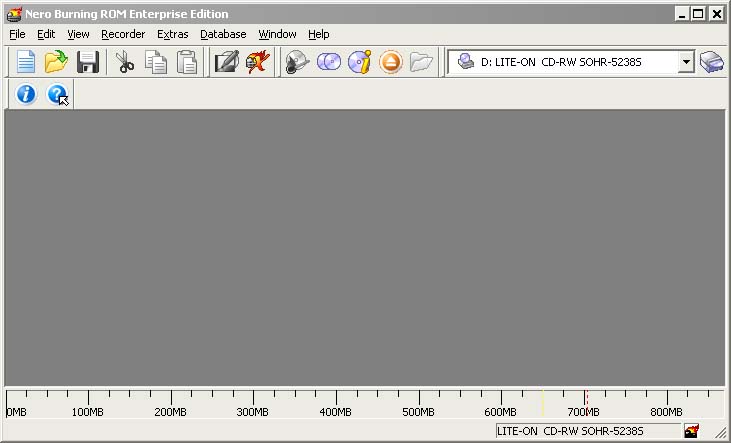
  1. After downloading the CD image from www.mikrotik.com you will have an ISO file on your computer:

    MT ISO image

  2. Open a CD Writing software, like Ahead NERO as in this example:

    Nero Burning ROM

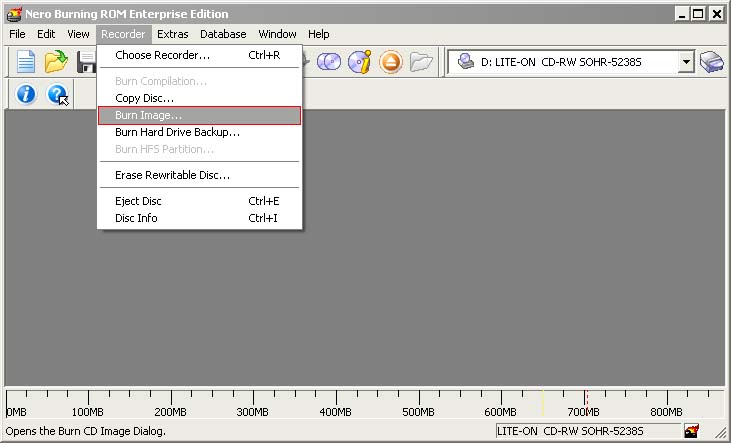
  3. In the program, choose Burn Image entry from the Recorder menu (there should be similary named option in all major CD burning programs):

    BurnImage option

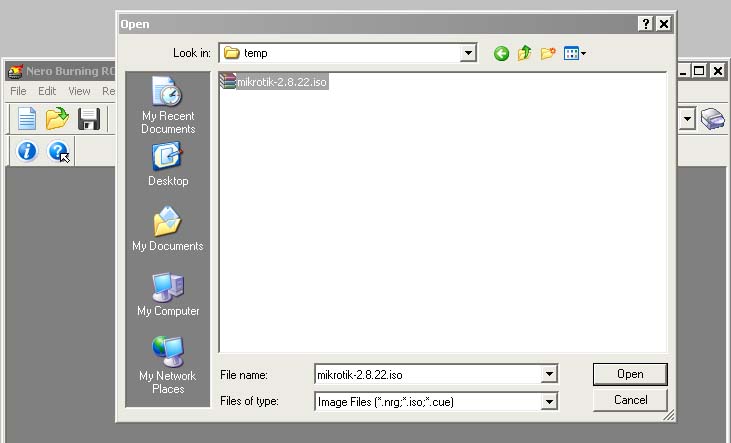
  4. Select the recently extracted ISO file and click Open:

    Open image

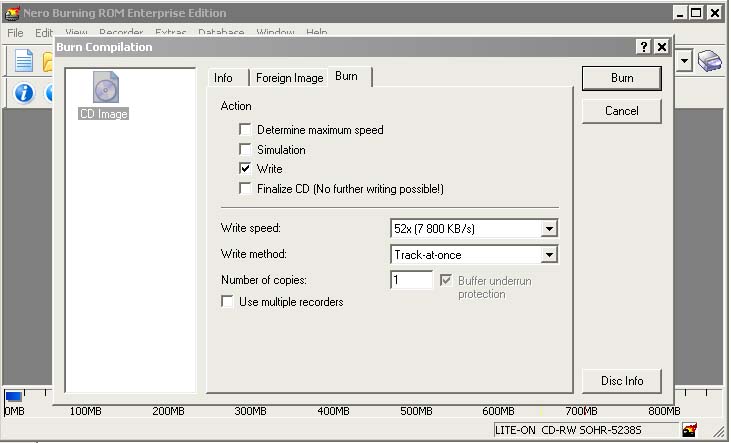
  5. Finally, click Burn button:

    Press Burn button

  6. Set the first boot device to CDROM in router's BIOS.
  7. After booting from CD you will see a menu where to choose packages to install:

                    Welcome to MikroTik Router Software installation
              
    Move around menu using 'p' and 'n' or arrow keys, select with 'spacebar'.
    Select all with 'a', minimum with 'm'. Press 'i' to install locally or 'r' to
    install remote router or 'q' to cancel and reboot.
    
    [X] system               [ ] isdn                  [ ] synchronous
    [X] ppp                  [ ] lcd                   [ ] telephony
    [X] dhcp                 [ ] ntp                   [ ] ups
    [X] advanced-tools       [ ] radiolan              [ ] web-proxy
    [ ] arlan                [ ] routerboard           [ ] wireless
    [ ] gps                  [X] routing
    [ ] hotspot              [X] security
       

    Follow the instructions, select needed packages, and press 'i' to install the software.

  8. You will be asked for 2 questions:

    Warning: all data on the disk will be erased!
    
    Continue? [y/n]
       

    Press [Y] to continue or [N] to abort the installation.

    Do you want to keep old configuration? [y/n]:

    You should choose whether you want to keep old configuration (press [Y]) or to erase the configuration permanently (press [N]) and continue without saving it. For a fresh installation, press [N].

    Creating partition...
    Formatting disk...

    The system will install selected packages. After that you will be prompted to press 'Enter'. Before doing that, remove the CD from your CD-Drive:

    Software installed.
    Press ENTER to reboot

Note: ref www.mikrotik.com

Berbagai Tipe Interface Mikrotik (Ethernet dan Wireless)

Ethernet Interfaces IN/E44 RouterBOARD 44 PCI 4-port Ethernet adapter Wireless Interfaces R52 802.11a+b+g 65 mW Wireless miniPCI Card SR5 Super Range 5 400mW 802.11a 5.8GHz MiniPCI card SR2 Super Range 2 400mW 802.11b/g 2.4GHz MiniPCI card AC/UFL U.fl-HIROSE'S Nfemale pigtail cable AC/SWI 2.4-5.8 GHz Omnidirectional Swivel Antenna with cable and U.fl connector IA/MP1 RouterBOARD 11 miniPCI Adapter IA/MP1R RouterBOARD 11 MiniPCI Adapter with bracket for RPTNC IA/MP4 RouterBOARD 14 Four-Slot miniPCI Adapter IA/MP4R RouterBOARD 14 Four-Slot miniPCI Adapter with bracket for RPTNC IA/MP8 RouterBOARD 18 Eight-Slot miniPCI Adapter (Extreme)

Blok Situs Porno menggunakan web proxy di mikrotik

Download tutorial untuk memblok situs porno menggunakan fasilitas web proxy di mikrotik, mirip dengan fasilitas block "word" atau kata-kata yang berbau porno, misal; sex, bugil, dsb pada squid proxy. download disini: http://indonesiacyber.net/artikel/Block-situs-porno-dengan-mikrotik.doc

Membagi Bandwidth Tanpa Mikrotik

Saya sempat baca di forum ini, ternyata juga ada cara lain membagi bandwidth selain dengan mikrotik. Sebenarnya banyak tool yang dapat digunakan untuk membagi bandwidth dan penggunaannya sangat mudah sekali. Bahkan kalo anda menggunakan fedora core 5 anda tidak perlu susah-susah menginstallnya. Nah apa saja sih yang dapat digunakan? berikut adalah tool yang dapat digunakan: CBQ HTB Webmin/CBQ P2P Grab Bluestar Yang saya baca di forum hanya ada cara Membagi Bandwidth dengan CBQ. 1. Asumsikan anda menggunakan Fedora Core 5 2. [root@oprekhouse ~]# cd /etc/sysconfig/cbq [root@oprekhouse cbq ~]# ls -l ... -rw-r--r-- 1 root root 11 Feb 12 2006 avpkt -rw-r--r-- 1 root root 79 Feb 12 2006 cbq-0000.example 3. rename cbq-0000.example misalnya menjadi cbq-256.lansatu 4. edit file cbq-256.lansatu contoh 1 : DEVICE=eth1,10Mbit,1Mbit RATE=256Kbit WEIGHT=25.6Kbit PRIO=5 RULE=192.168.1.1/32 contoh 2: DEVICE=eth1,10Mbit,1Mbit RATE=512Kbit WEIGHT=51.2Kbit PRIO=5 RULE=192.168.1.1/32 Isi file seperti di atas itu artinya anda memberikan bandwidth 256 kepada semua client yang koneksi internet melalui gateway 192.168.1.1. jadi misalnya anda memiliki klien 100 yang terkoneksi itu berarti bandwith 256 itu di share oleh 100 client tersebut. 5. [root@oprekhouse ~]# /sbin/cbq start kali anda mendapatkan pesan seperti berikut, lakukan langkah ke 6: find: warning: you have specified the -maxdepth option after a non-option argument (, but options are not positional (-maxdepth affects tests specified before it as well as those specified after it). Please specify options before other arguments. find: warning: you have specified the -maxdepth option after a non-option argument (, but options are not positional (-maxdepth affects tests specified before it as well as those specified after it). Please specify options before other arguments. 6. [root@oprekhouse ~]# /sbin/cbq restart 7. Selesai Sekarang silahkan anda cek apakah CBQ sudah benar-benar berjalan dengan baik dengan menggunakan cari ini [root@oprekhouse ~]# iftop -i eth1 (eth satu adalah yg ber ip 192.168.1.1) source http://www.oprekpc.com

Senin, 05 Mei 2008

Setting DHCP Server Pada Mikrotik

Untuk membuat DHCP Server diperlukan langkah-langkah sebagai berikut : 1. Membuat address pool dan menentukan IP Range 2. Mengaktifkan DHCP server. Sedangkan untuk membuat Internet Gateway Server, inti langkahnya adalah melakukan masquerading yang akan melewatkan paket-paket data ke user. Berikut ini adalah gambaran dari network dan servernya : 1. Mikrotik di install pada CPU dengan 2 ethernet card, 1 interface utk koneksi ke internet, 1 interface utk konek ke lokal. 2. IP address : - gateway (mis: ADSL modem) : 192.168.100.100 - DNS : 192.168.100.110 - interface utk internet : 192.168.100.1 - interface utk lokal : 192.168.0.1 Untuk memulainya, kita lihat interface yang ada pada Mikrotik Router [admin@Mikrotik] > interface print Flags: X - disabled, D - dynamic, R - running # NAME TYPE RX-RATE TX-RATE MTU 0 R ether1 ether 0 0 1500 1 R ether2 ether 0 0 1500[admin@Mikrotik] > kemudian set IP address pada interface Mikrotik. Misalkan ether1 akan kita gunakan untuk koneksi ke Internet dengan IP 192.168.100.1 dan ether2 akan kita gunakan untuk network local kita dengan IP 192.168.0.1 [admin@mikrotik] > ip address add address=192.168.100.1 netmask=255.255.255.0 interface=ether1 [admin@mikrotik] > ip address add address=192.168.0.1 netmask=255.255.255.0 interface=ether2 [admin@mikrotik] >ip address print Flags: X - disabled, I - invalid, D - dynamic # ADDRESS NETWORK BROADCAST INTERFACE 0 192.168.100.1/24 192.168.100.0 192.168.100.255 ether1 1 192.168.0.1/24 192.168.0.0 192.168.0.255 ether2 [admin@mikrotik] > Setelah selesai Barulah kita bisa melakukan setup DHCP server pada Mikrotik. 1. Membuat address pool /ip pool add name=dhcp-pool ranges=192.168.0.2-192.168.0.100 /ip dhcp-server network add address=192.168.0.0/24 gateway=192.168.0.1 2. Tentukan interface yang dipergunakan dan aktifkan DHCP Server. /ip dhcp-server add interface=ether2 address-pool=dhcp-pool enable 0 [admin@mikrotik] > ip dhcp-server print Flags: X - disabled, I - invalid # NAME INTERFACE RELAY ADDRESS-POOL LEASE-TIME ADD-ARP 0 dhcp1 ether2 sampai tahap ini, DHCP server telah selesai untuk dipergunakan dan sudah bisa di test dari user. Langkah Selanjutnya adalah membuat internet gateway, Misalnya IP ADSL Modem sebagai gateway untuk koneksi internet adalah 192.168.100.100 dan DNS Servernya 192.168.100.110, maka lakukan setting default gateway dengan perintah berikut : [admin@mikrotik] > /ip route add gateway=192.168.100.100 3. Melihat Tabel routing pada Mikrotik Routers [admin@mikrotik] > ip route print Flags: X - disabled, A - active, D - dynamic, C - connect, S - static, r - rip, b - bgp, o - ospf # DST-ADDRESS PREFSRC G GATEWAY DISTANCE INTERFACE 0 ADC 192.168.0.0/24 192.168.0.1 ether2 1 ADC 192.168.100.0/24 192.168.100.1 ether1 2 A S 0.0.0.0/0 r 192.168.100.100 ether1 [admin@mikrotik] > Lanjutkan dengan Setup DNS [admin@mikrotik] > ip dns set primary-dns=192.168.100.110 allow-remoterequests=no [admin@mikrotik] > ip dns print primary-dns: 192.168.100.110 secondary-dns: 0.0.0.0 allow-remote-requests: no cache-size: 2048KiB cache-max-ttl: 1w cache-used: 16KiB [admin@mikrotik] > 4. Tes untuk akses domain, misalnya dengan ping nama domain [admin@mikrotik] > ping yahoo.com 216.109.112.135 64 byte ping: ttl=48 time=250 ms 10 packets transmitted, 10 packets received, 0% packet loss round-trip min/avg/max = 571/571.0/571 ms [admin@mikrotik] > Jika sudah berhasil reply berarti seting DNS sudah benar. 5. Setup Masquerading, ini adalah langkah utama untuk menjadikan Mikrotik sebagai gateway server [admin@mikrotik] > ip firewall nat add action=masquerade outinterface=ether1chain: srcnat [admin@mikrotik] > [admin@mikrotik] ip firewall nat print Flags: X - disabled, I - invalid, D - dynamic 0 chain=srcnat out-interface=ether1 action=masquerade [admin@mikrotik] > Selesai, tinggal test koneksi dari user. seharusnya dengan cara ini user sudah bisa terhubung ke internet. Cara ini memang cara yang paling mudah untuk membuat user dapat terhubung ke internet, namun tingkat keamanannya masih rendah dan diperlukan pengaturan firewall. Mudah-mudahan saya bisa membahasnya dilain waktu. Source : http://mikrotik-id.blogspot.com/search/label/Mikrotik%20DHCP%20Server